
Weight Loss Simulator with Photo
Not sure what you'll look like at your goal weight? A weight loss photo simulator turns a picture you already have into an AI weight loss photo — a side-by-side before-and-after preview, so you can test 10, 20, or 50 lbs on your face and body, not a stock model.
Full-body · Portrait · Selfie supported
Drop your photo here or browse
Clothed full-body or portrait • JPG, PNG
Use a photo with clothes on. Shirtless, swimwear or underwear photos are often blocked by the AI safety filter, and the simulation will fail. Fitted everyday clothes or gym wear work best.
Real weight change isn't proportional — this stops the AI from shrinking your legs when it's your belly that changes.
Upload a photo to start your simulation
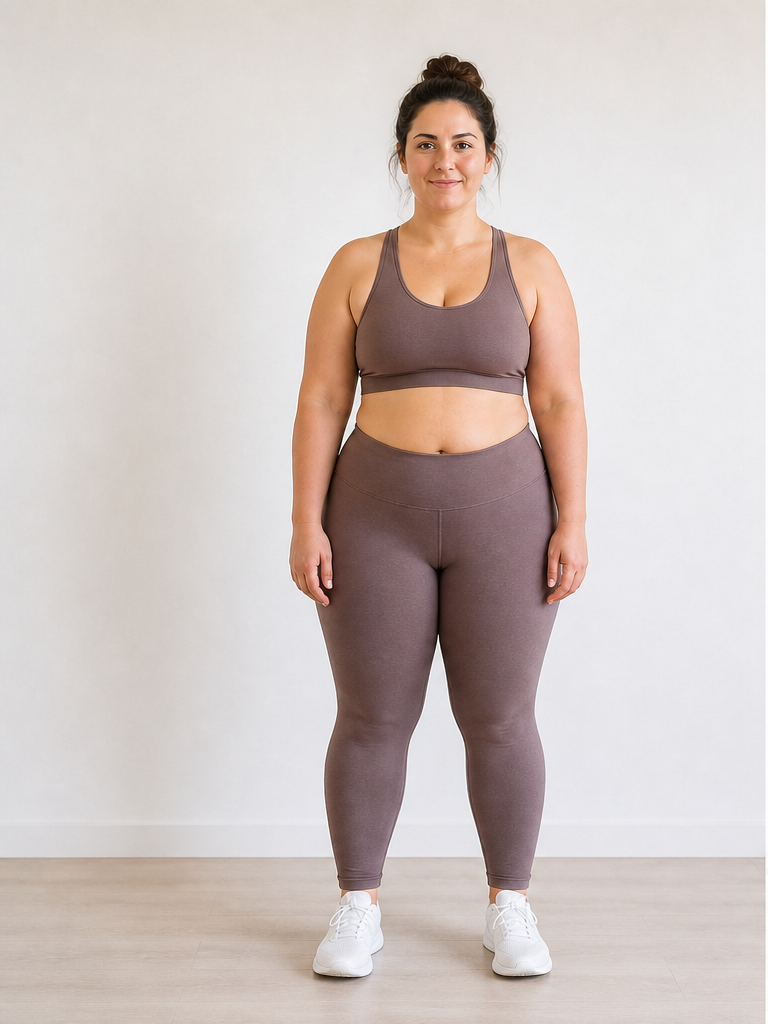 Before
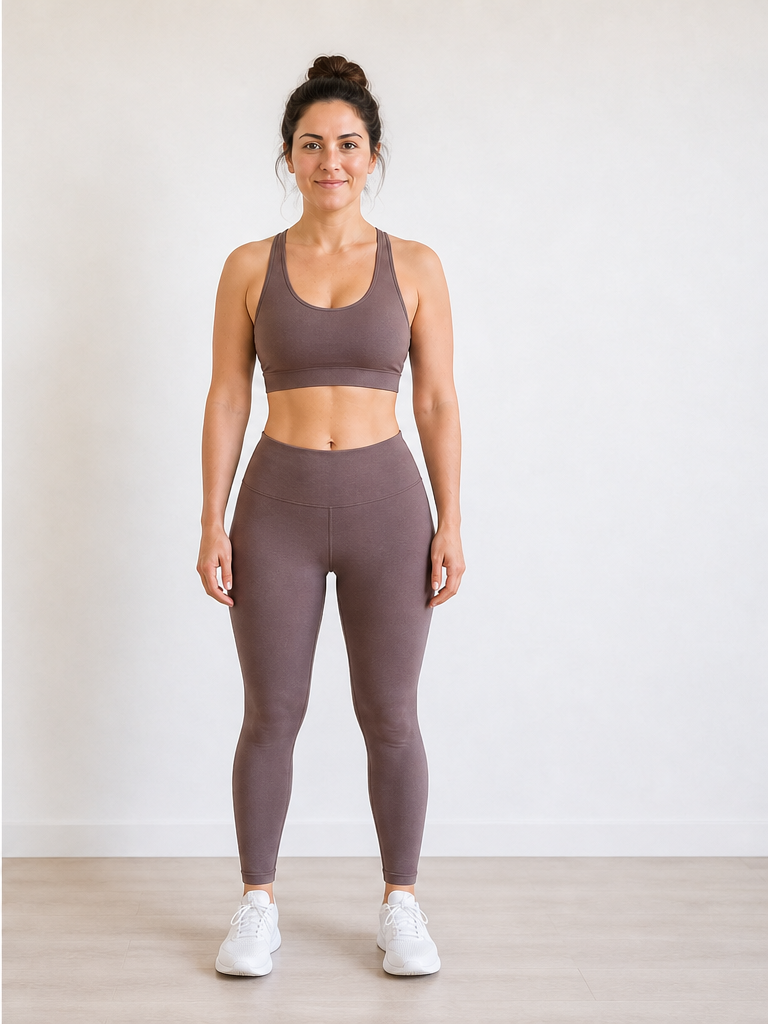 After −30 lbs
Demo · Upload your photo to generate your own
What is an AI weight loss photo?
An AI weight loss photo is your own picture, edited by AI to show how you would look after losing (or gaining) a specific amount of weight. You give the model two things: the photo, and a number. It returns a photorealistic version of the same shot with body volume adjusted to match that number.
What it keeps
Your face and identity, hair, clothing, pose, lighting, and background — so the result reads as a photo from the same session, not a different person.
What it changes
Body volume where weight actually shifts: waist and abdomen, hips and thighs, upper arms, plus face fullness and jawline definition, all scaled to the weight goal you set.
Which photo type should you upload?
A weight loss simulator with photo works with different shots — but the photo you pick changes how detailed the preview feels.
Full-body
Best choiceBest for: Overall silhouette, posture, and leg-to-torso proportions
Tip: Stand 6–8 feet from the camera or use a mirror. Keep feet visible and arms relaxed at your sides.
Waist-up portrait
Great optionBest for: Face fullness, shoulders, and upper-body shape
Tip: Frame from mid-thigh or waist up. Even lighting on your face avoids shadowy jaw edits.
Selfie
Works with careBest for: Quick tests when no full-body photo is available
Tip: Hold the phone level with your eyes, not below your chin. Step back so your torso is in frame.
Photo mistakes that ruin your simulation
Most disappointing weight loss simulator photo results come from the input image, not the AI. Avoid these four common issues.
Backlit windows
Fix: Face the light source or stand sideways to a window so your body isn't a dark silhouette.
Oversized layers
Fix: Swap hoodies for a fitted top — the AI needs visible outline, not fabric volume.
Wide-angle distortion
Fix: Use the rear camera or step back; selfie lenses near your face exaggerate proportions.
Cropped group shots
Fix: Use a solo photo. Partial limbs at frame edges confuse body-boundary detection.
How people use a weight loss photo simulator
Real scenarios where uploading a photo beats imagining a number on the scale.
Pick a goal before you start
Trying to decide between losing 15 or 30 lbs? Run both numbers on the same photo and compare which goal feels right.
Show a trainer your target
A weight loss simulator photo gives coaches a visual anchor beyond a number on the scale — useful for program planning.
Stay motivated mid-journey
Re-run the simulation as you progress. Seeing the gap close between current and goal can reinforce consistency.
Preview weight gain goals
Building muscle or recovering from illness? Slide to positive values to preview a healthier, fuller look.
AI Weight Loss Photo FAQ
Photo-specific questions about uploads, formats, and results. For pricing or account questions, see our pricing page.
Can AI generate a weight loss photo of me?
Full-body or portrait — which works better for a weight loss simulator with photo?
Can I use a selfie with a weight loss photo simulator?
Why does my weight loss simulator photo look wrong when I wear loose clothing?
Can I use an old photo from a few years ago?
Does a weight loss simulator with photo change my face?
What resolution or file format should I upload?
Looking for a browser-based preview without a 3D scan? Try our virtual weight loss simulator. Working with a saved JPEG or PNG? See our weight loss image simulator. Want the opposite direction? Try the AI weight gain filter. Curious about facial changes? Try our face weight loss simulator. Questions about credits? View pricing. Privacy details in our Privacy Policy.
See yourself at your goal weight
Grab any clear photo from your camera roll — mirror shot, portrait, or selfie — and run it through the weight loss simulator with photo above. Your first preview takes about 15 seconds.